Auto-Zoom
The new Auto-Zoom feature helps you highlight key actions in your recordings with smooth, professional zoom effects. Whether you’re teaching, presenting, or demonstrating software, Auto-Zoom ensures your audience never misses a detail.
What Is Auto-Zoom
Auto-Zoom automatically magnifies the area around your mouse click to draw attention during playback.
You can choose between:
Automatic mode — Zooms in whenever you click.
Manual mode — Lets you set exactly where and when to zoom.
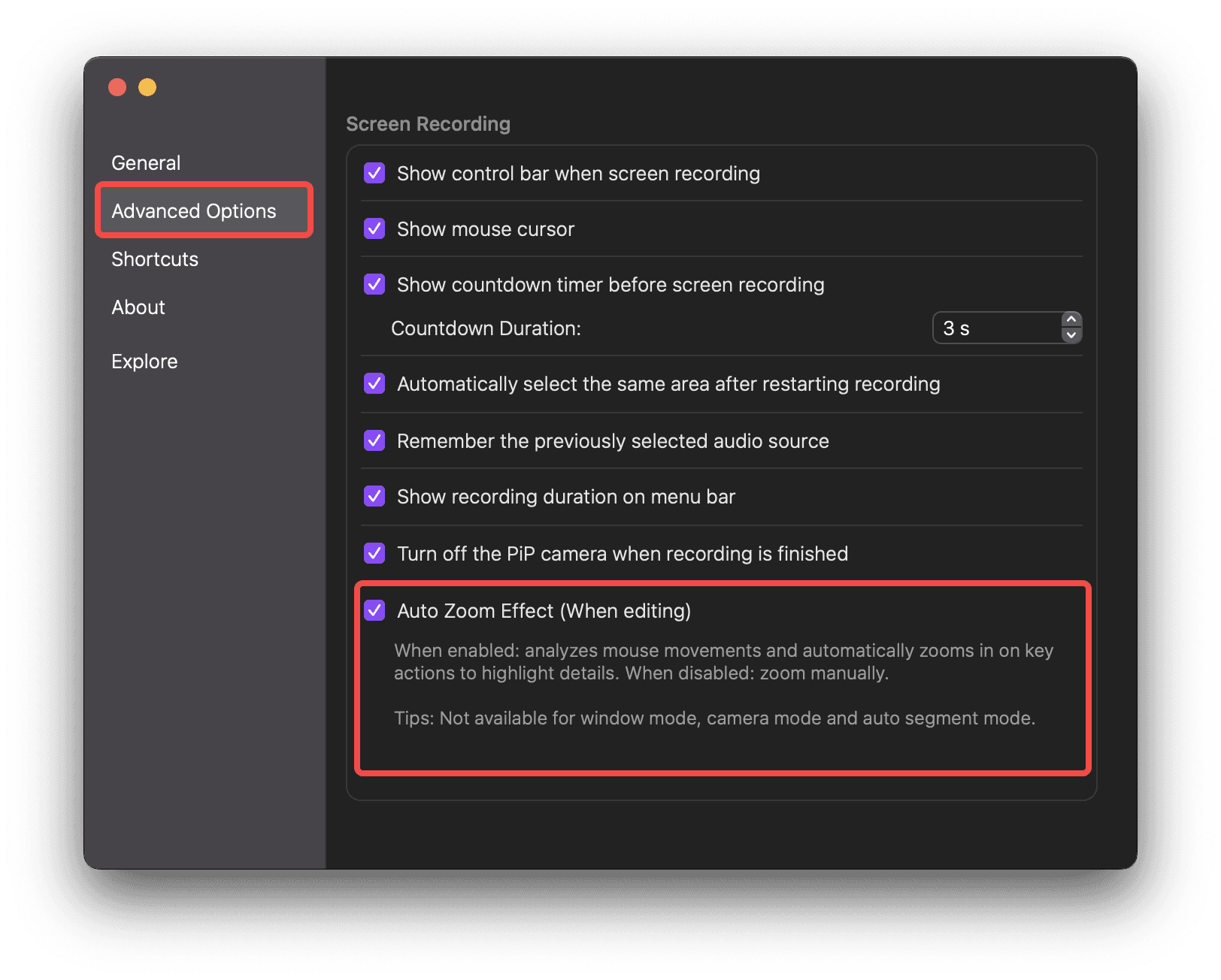
Turn Auto-Zoom On or Off
Open Settings
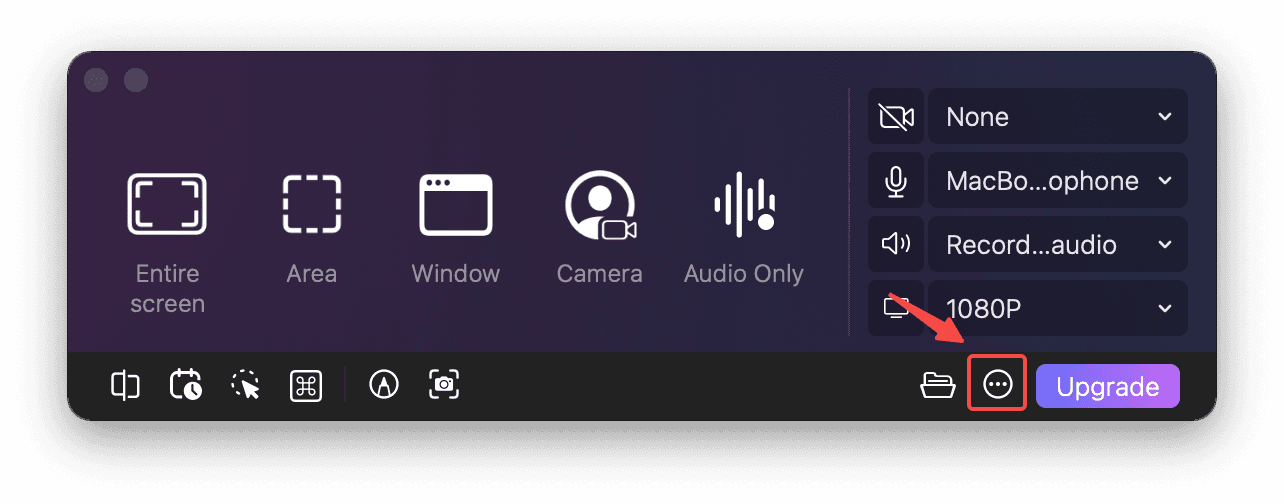
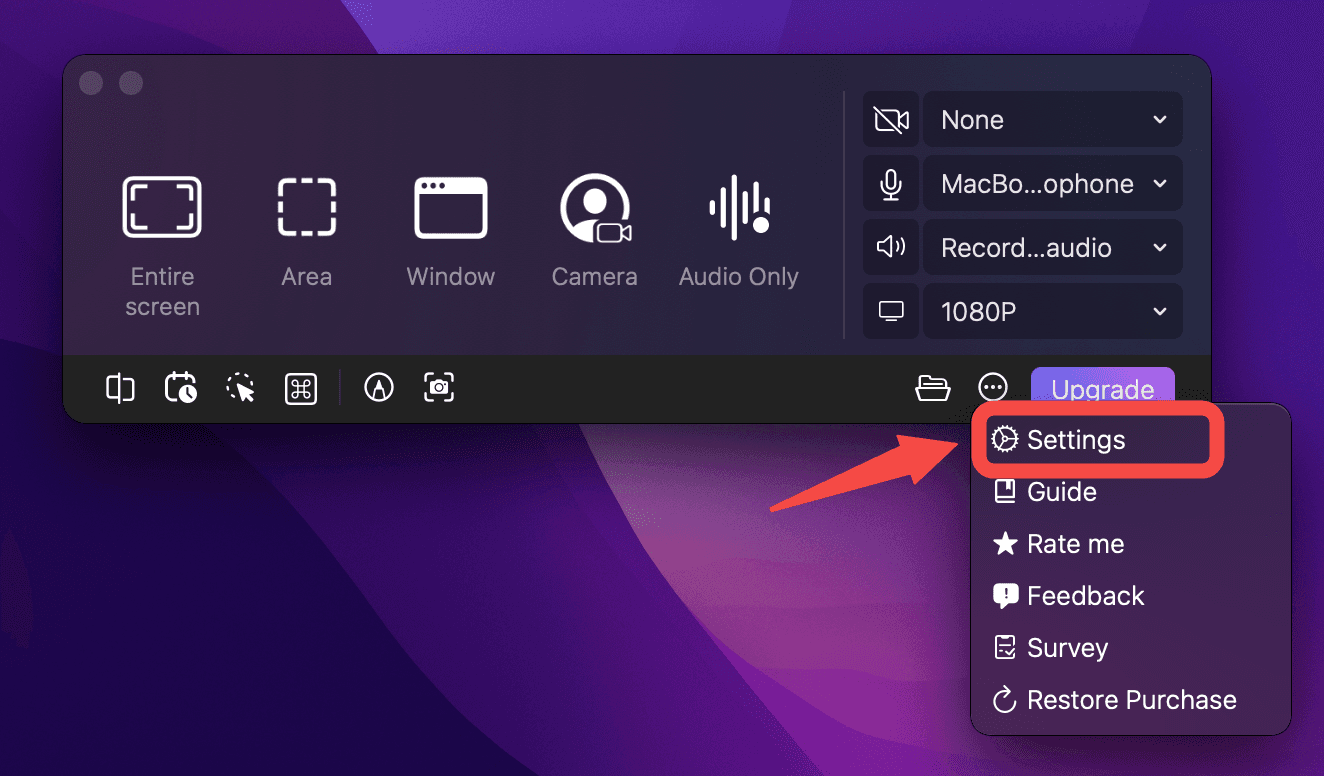
Go to Advanced Options > Check or uncheck the Auto Zoom Effect box
Activate and Edit Auto-Zoom
After you finish recording:
Click the Edit icon, or
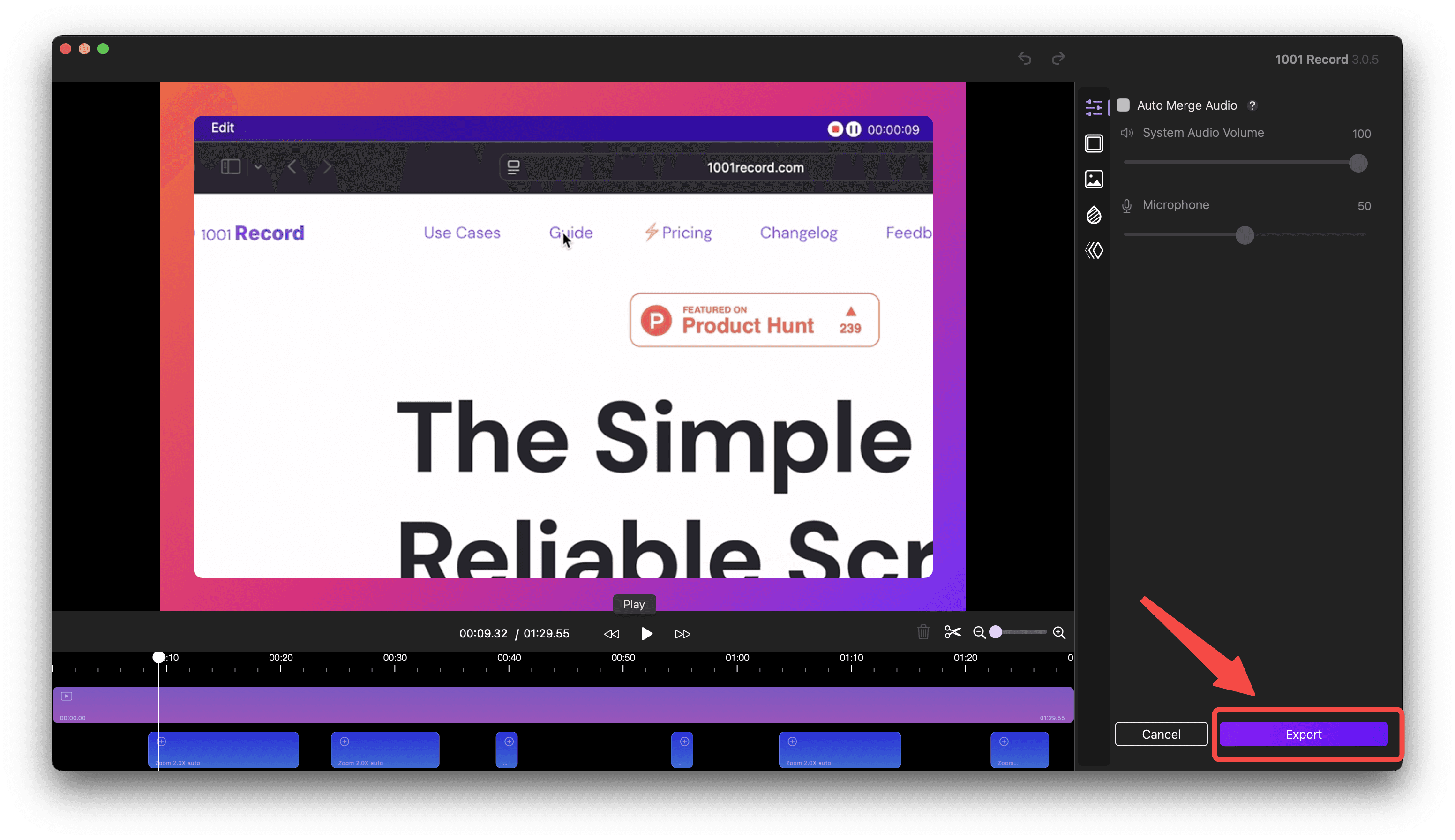
Select the “Try Auto-Zoom” bar to enter the editing interface.
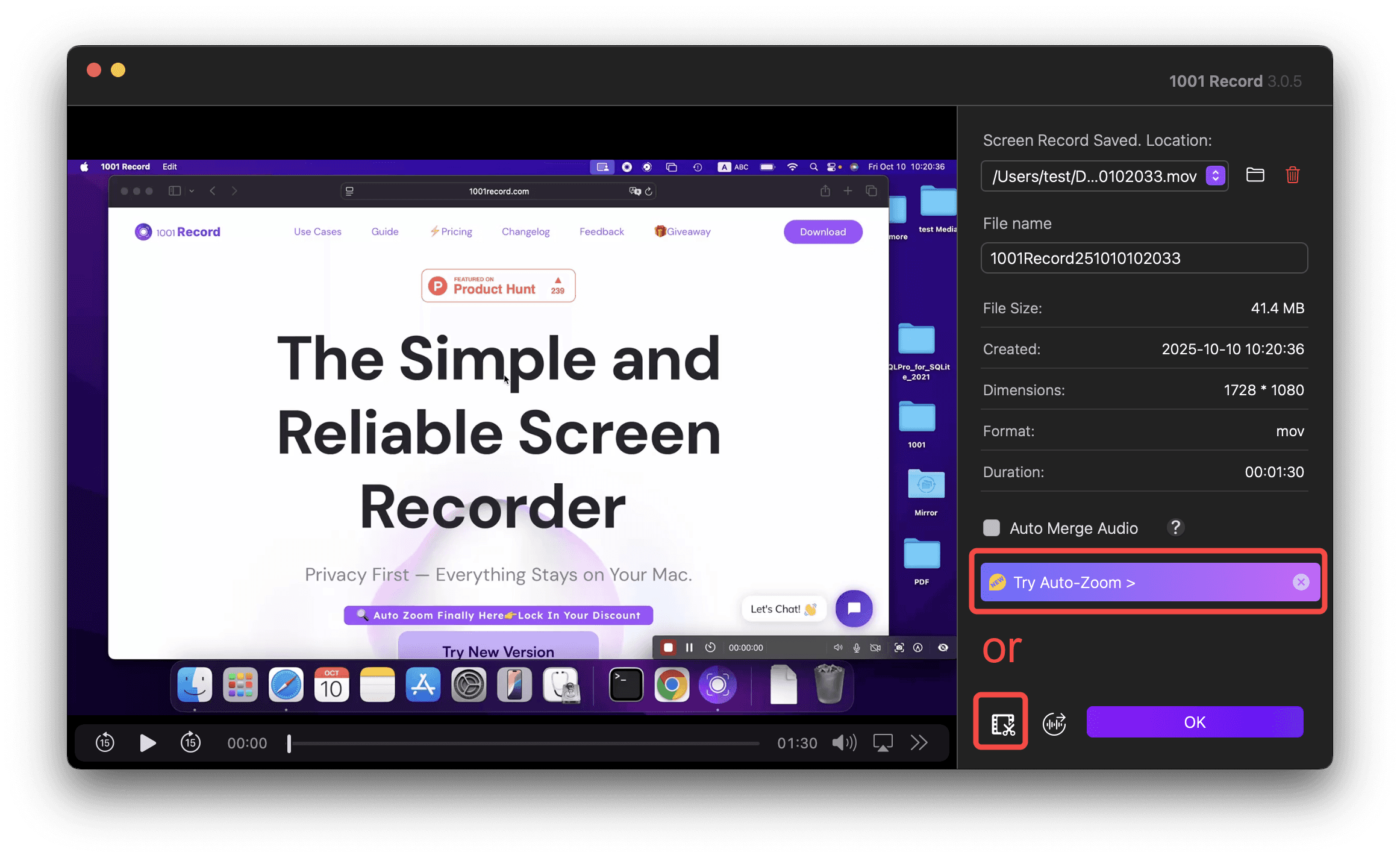
💡 Important Note: The zoom effect will only apply after you enter the editor and export your video.
Add, Delete, or Adjust Zooms
Add: Click the " + " on the zoom timeline.
Delete: Select a zoom block → right-click → Delete, click the delete icon, or press the Delete key.
Adjust length: Select a zoom block, drag the edge to make it shorter/longer.
Disable (temporarily): Right-click a zoom block → Disable. Right click and uncheck Disable to enable it.
(Your settings remain saved, but the effect is hidden.)
Move: Select and drag the zoom block to move it.
Zoom levels: Select a zoom block, and adjust zoom level (from 1x to 4x) on the right adjusting panel.
Auto vs. Manual Zoom
Shift between Auto and Manual Zoom by selecting a zoom block, then choose Auto or Manual from the options menu.
Auto-Zoom: Detects your mouse clicks automatically and centers the zoom on them.
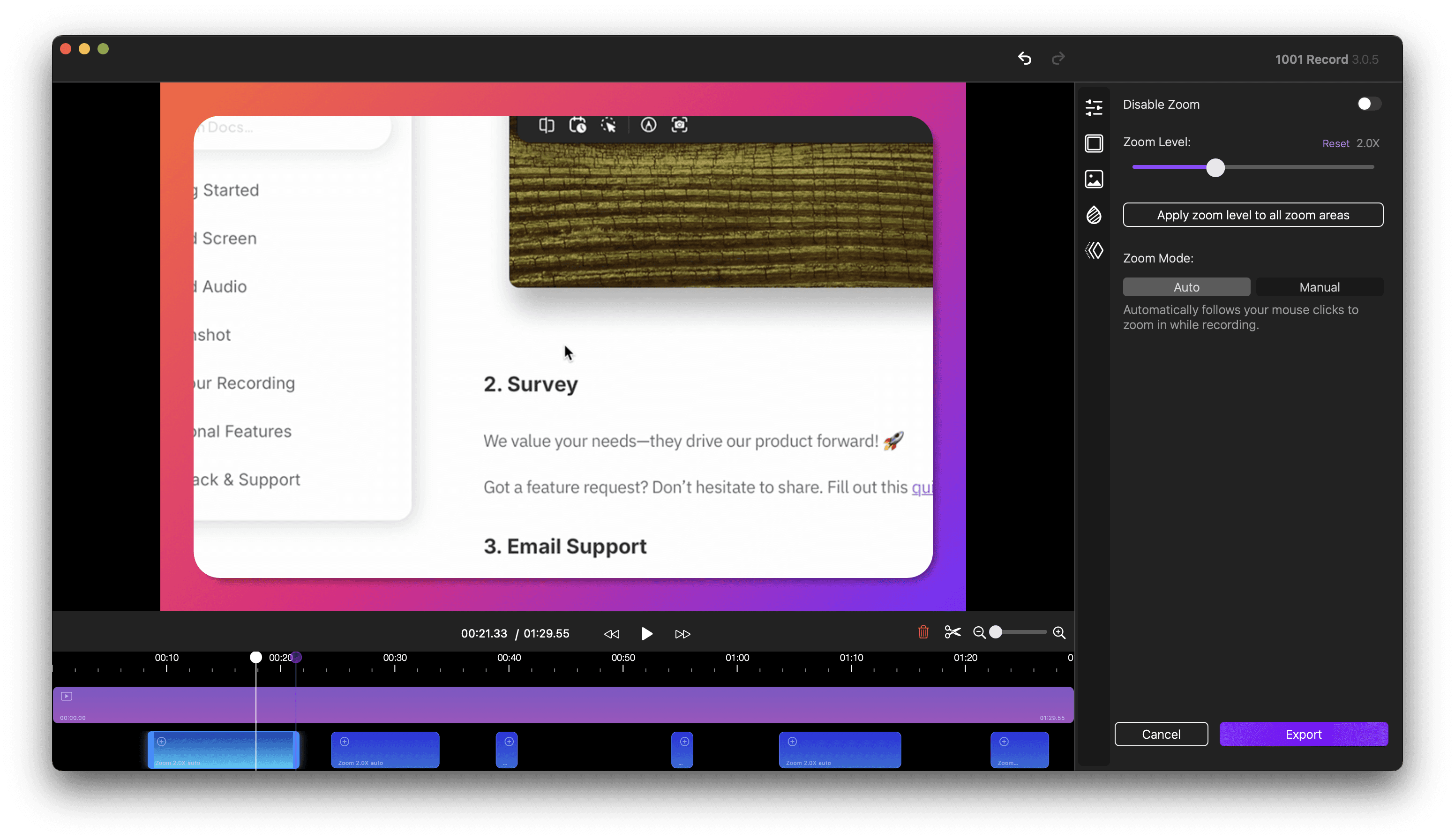
Manual Zoom: Lets you decide the timing and target area manually. Move the purple dot to determine your target.
Zoom Animation
Customize how the zoom transitions appear:
Choose from preset animation styles, or
Adjust stiffness, damping, and mass manually for a smoother/stiffer feel.
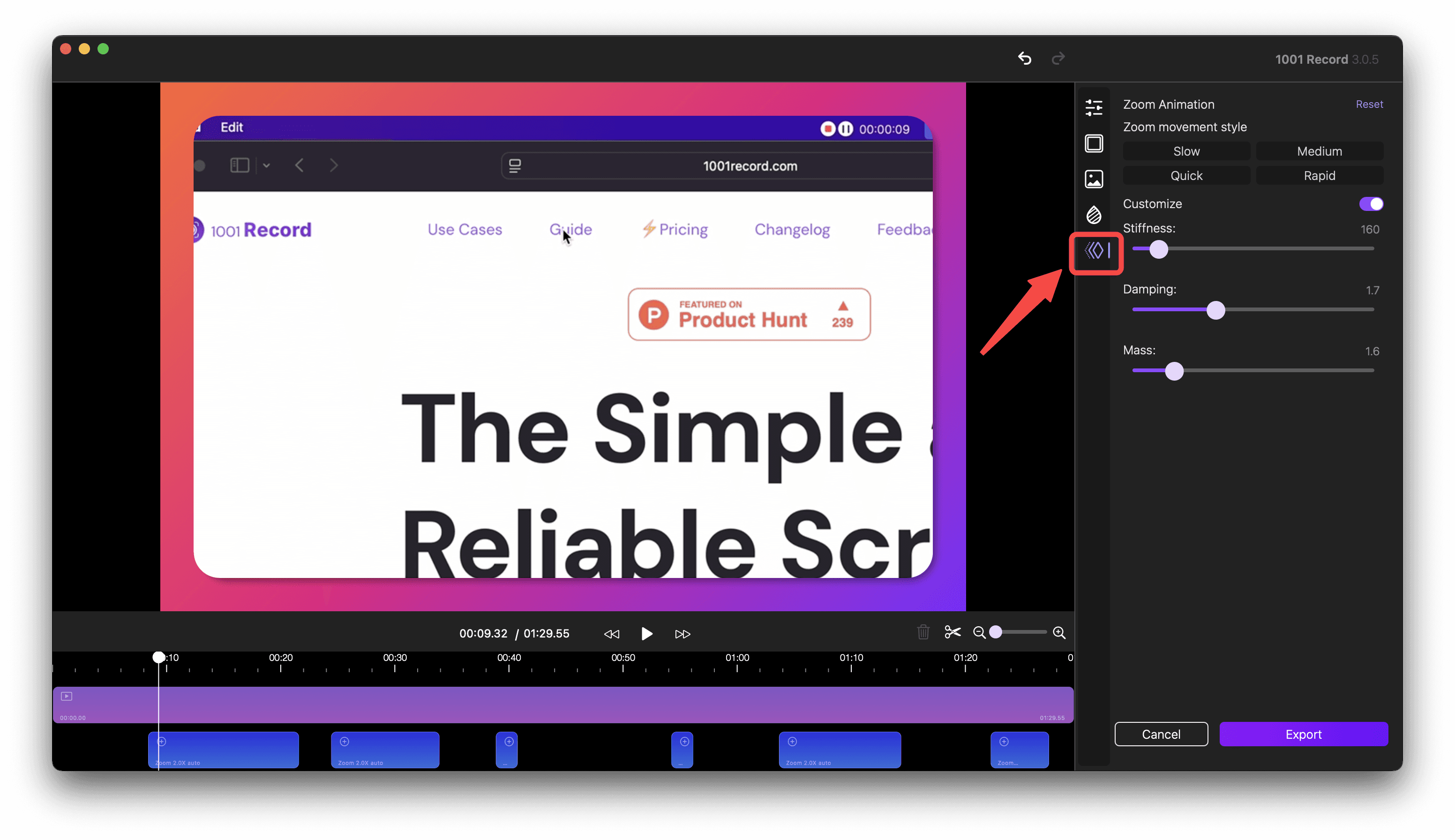
Stiffness — Controls how strongly the zoom tries to reach its target position.
Higher stiffness = faster and snappier motion.
Lower stiffness = slower, more relaxed movement.Damping — Determines how quickly the motion settles after zooming.
Higher damping = less bounce and quicker stabilization.
Lower damping = more bounce or overshoot before stopping.Mass — Simulates the “weight” of the zoom motion.
Higher mass = heavier, slower response.
Lower mass = lighter, more responsive feel.
Export Your Video
When editing is done, click Export to save your video with all zoom effects included.