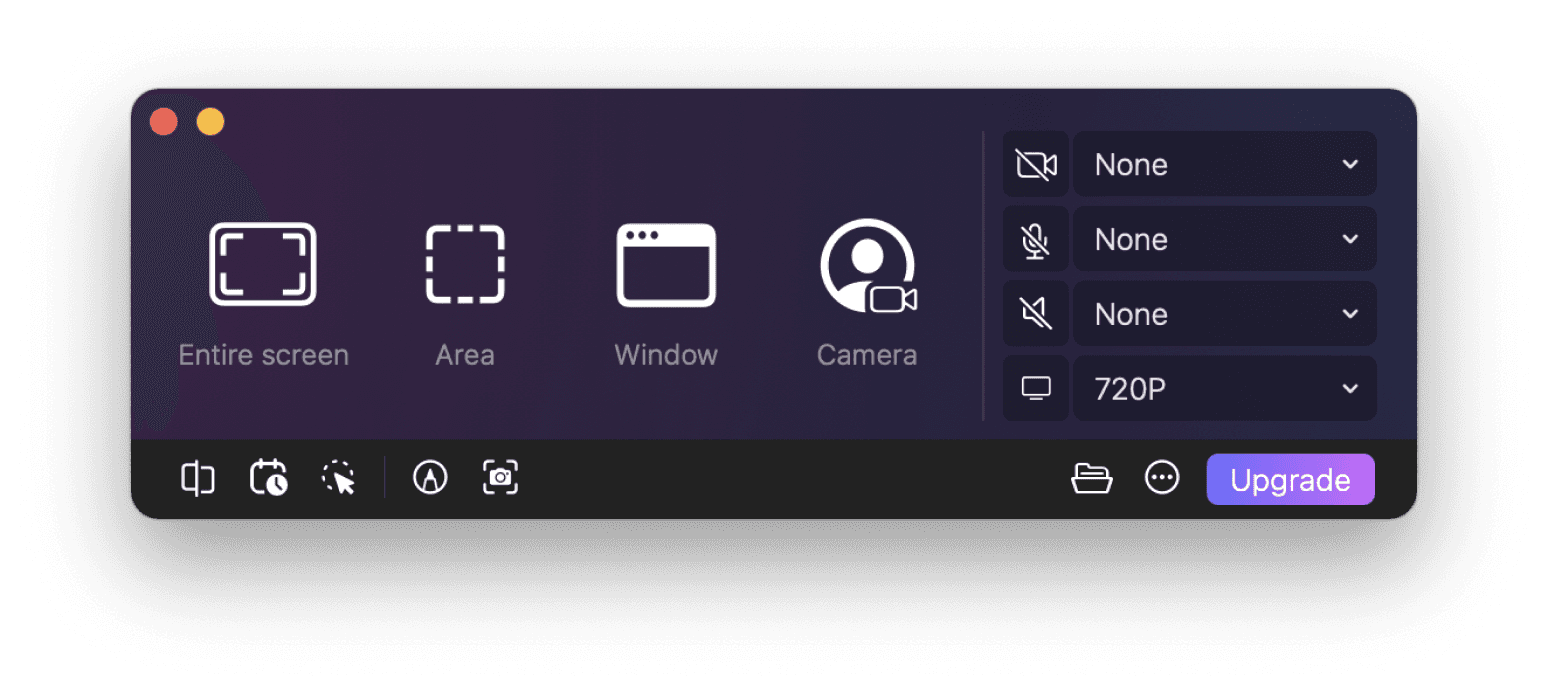
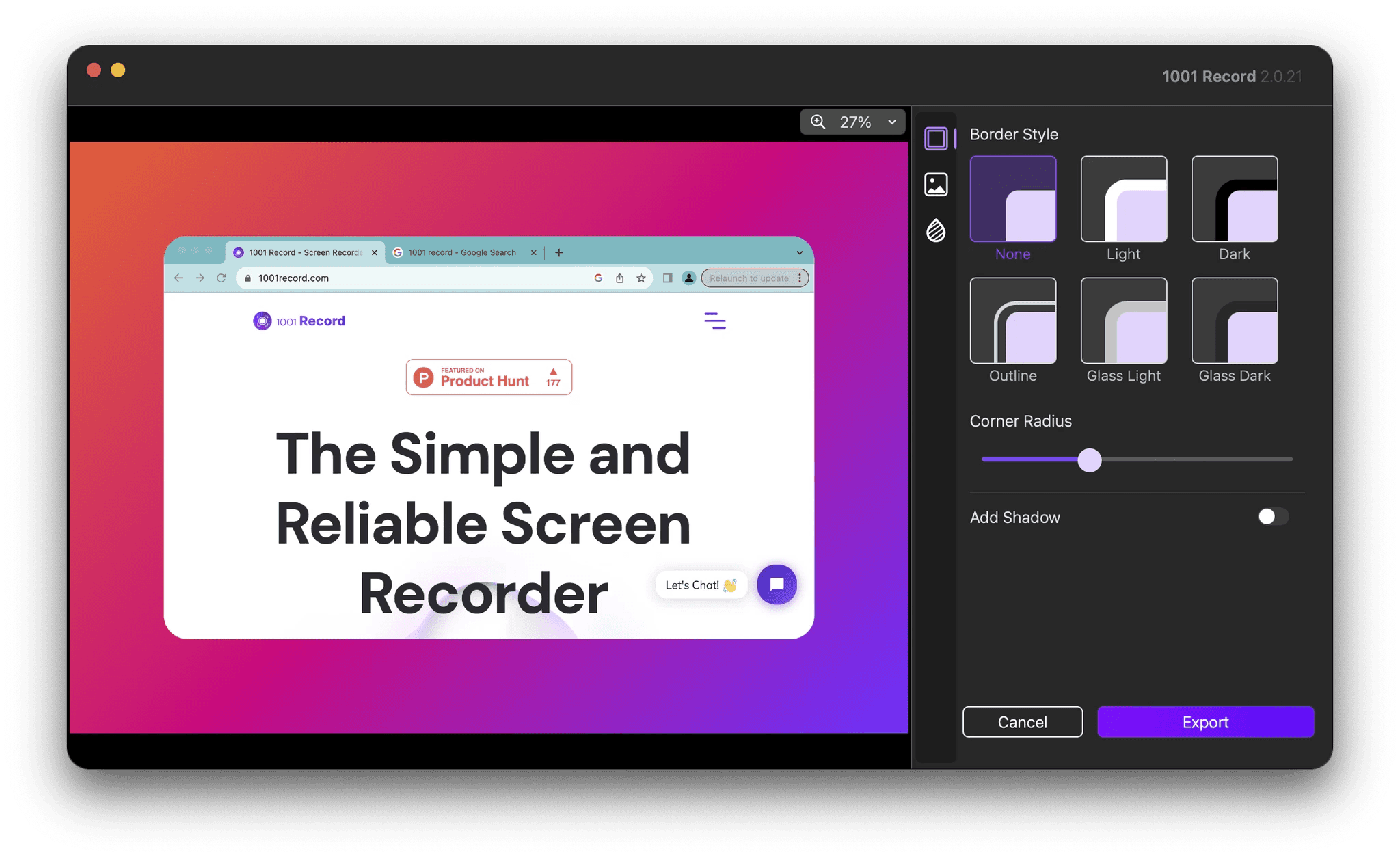
Whether you need to capture your entire screen, a specific window, or just a selected area, macOS has built-in tools that make it easy. If you're looking for more flexibility and editing options, 1001Record is a great alternative. Here’s how to use both methods:
Using macOS Built-in Screenshot Tools
Mac’s built-in screenshot shortcuts are quick and easy to use.
Shift + Command + 3: Capture the Entire Screen
Press
Shift + Command + 3, and a screenshot of your entire screen will be saved to your desktop automatically.
Shift + Command + 4: Capture a Selected Area
Press
Shift + Command + 4, then drag your cursor to select the area you want to capture. Once you release the mouse or trackpad, the screenshot will be saved.
Shift + Command + 4, then Space: Capture a Specific Window
Press
Shift + Command + 4, thenSpace. Your cursor will turn into a camera icon. Click on the window you want to capture, and it will be saved as a separate image.
Shift + Command + 5: Use the Screenshot Toolbar (macOS Mojave & Later)
Press
Shift + Command + 5to open a toolbar with options for taking screenshots or recording your screen. This makes it easy to choose exactly what you want to capture.