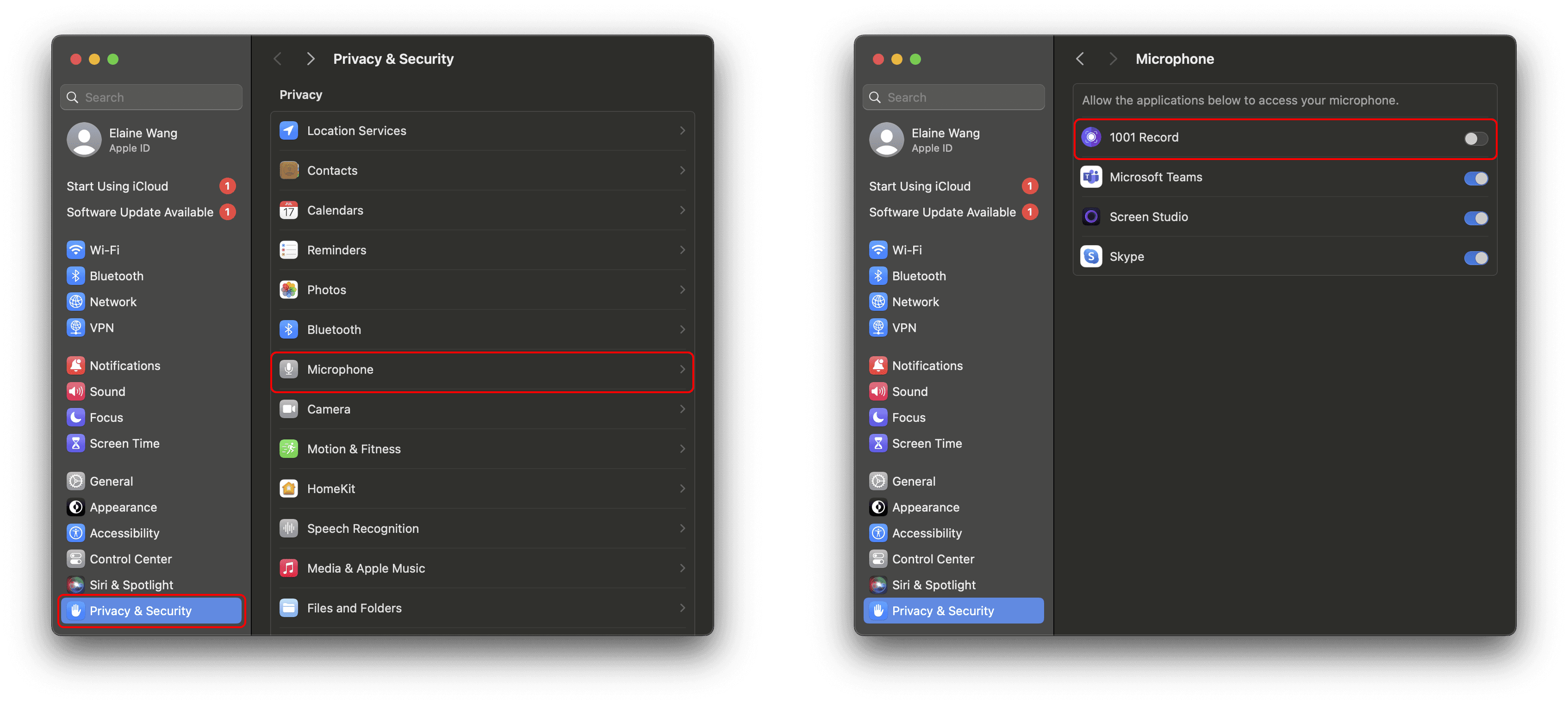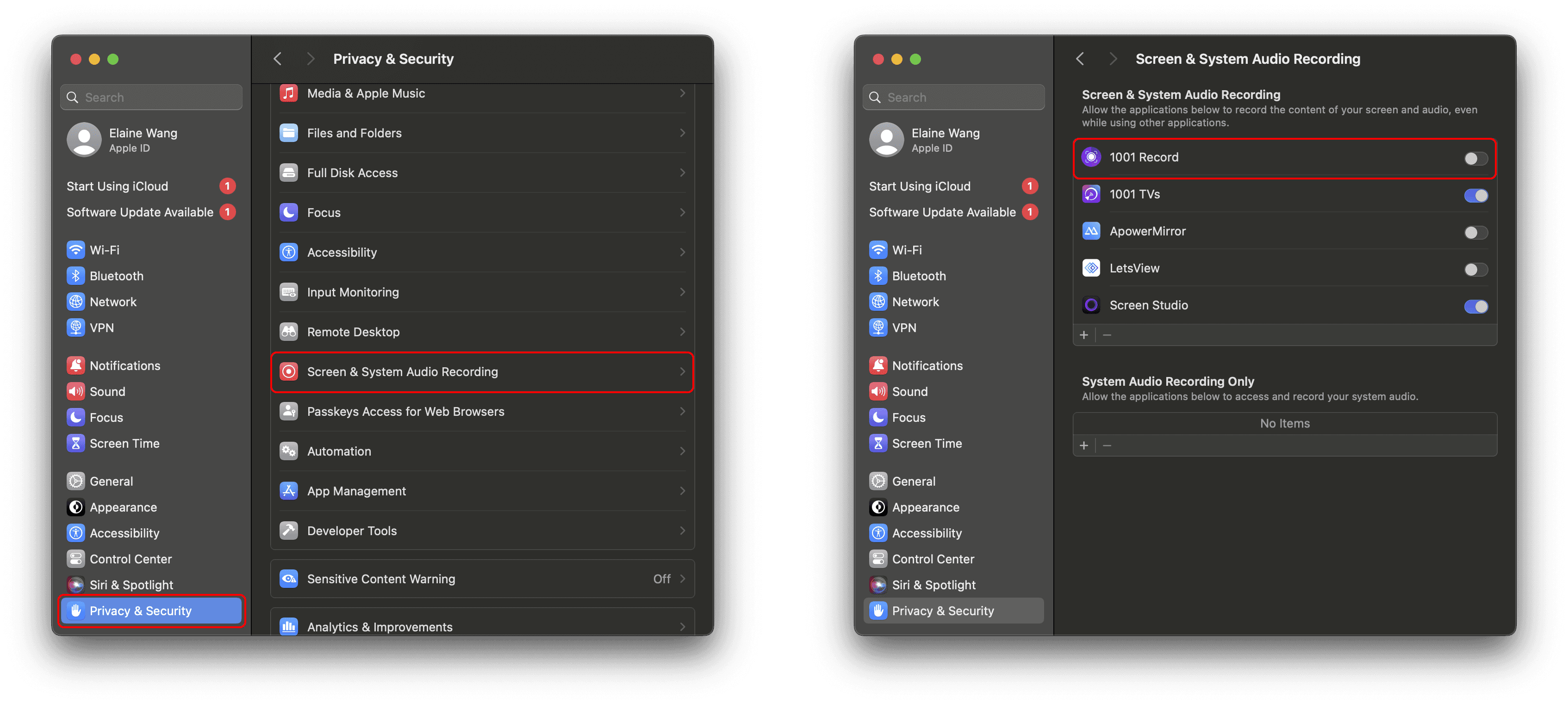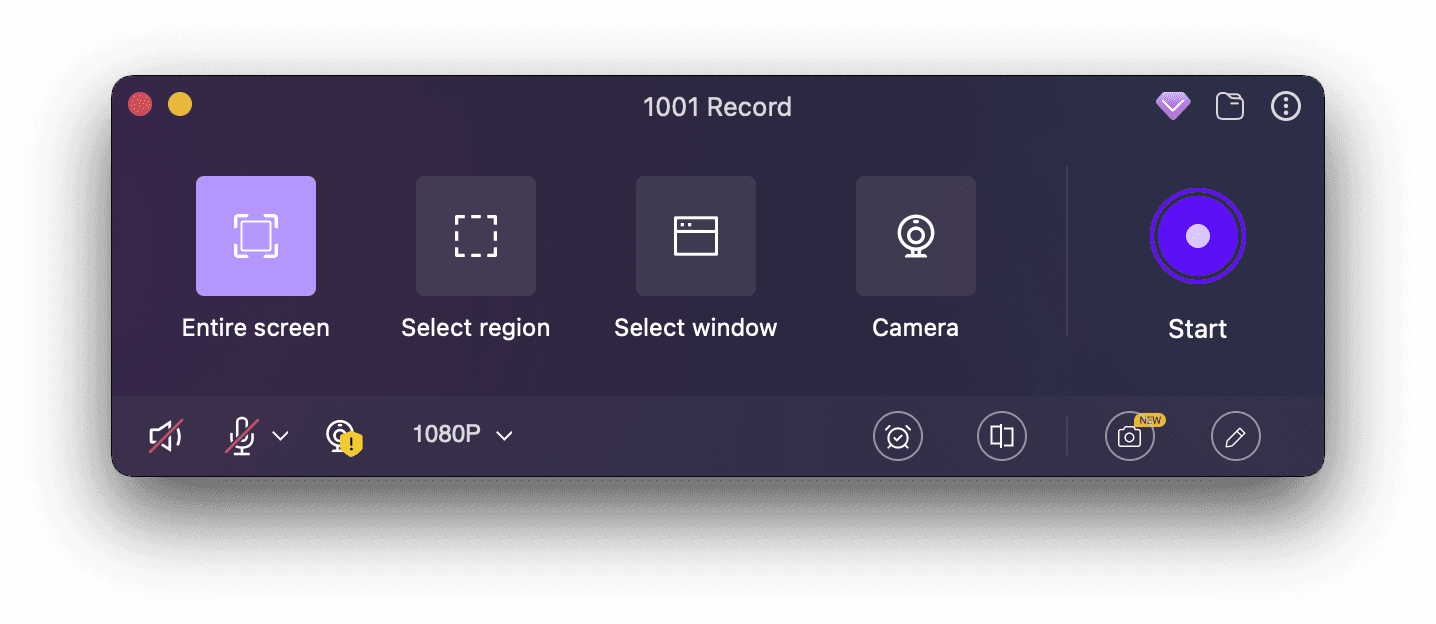
Screen recording is a great way to capture your Mac’s display for tutorials, saving live streams, recording meetings, gameplay, or sharing instructions. If you're not getting any sound while recording, try these solutions:
Method 1: Using Mac’s Built-in Screen Recording
Mac’s built-in QuickTime Player can record microphone audio but doesn’t support internal system sound by default.
To record system audio: You’ll need third-party software.
If your microphone isn’t working: Try selecting the correct audio source in QuickTime Player.
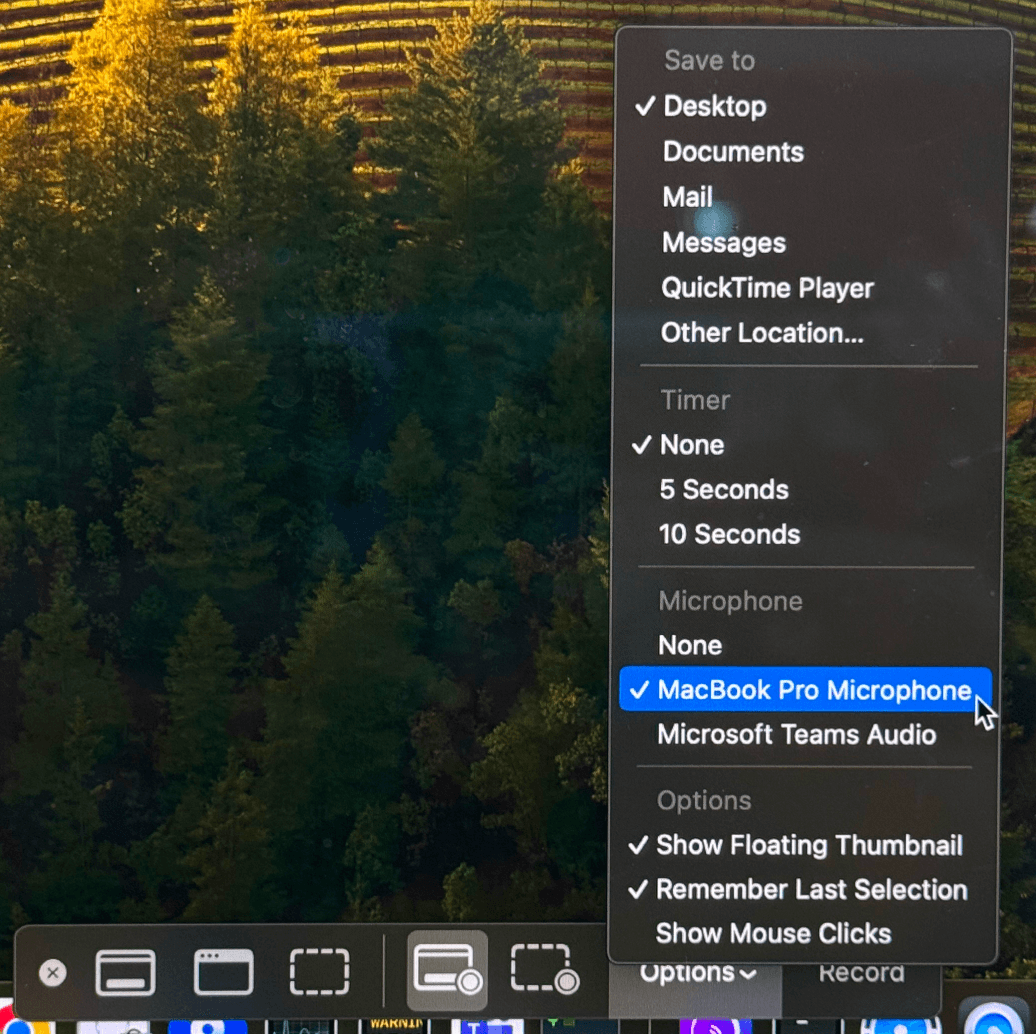
How to Set Up Microphone Recording in QuickTime Player:
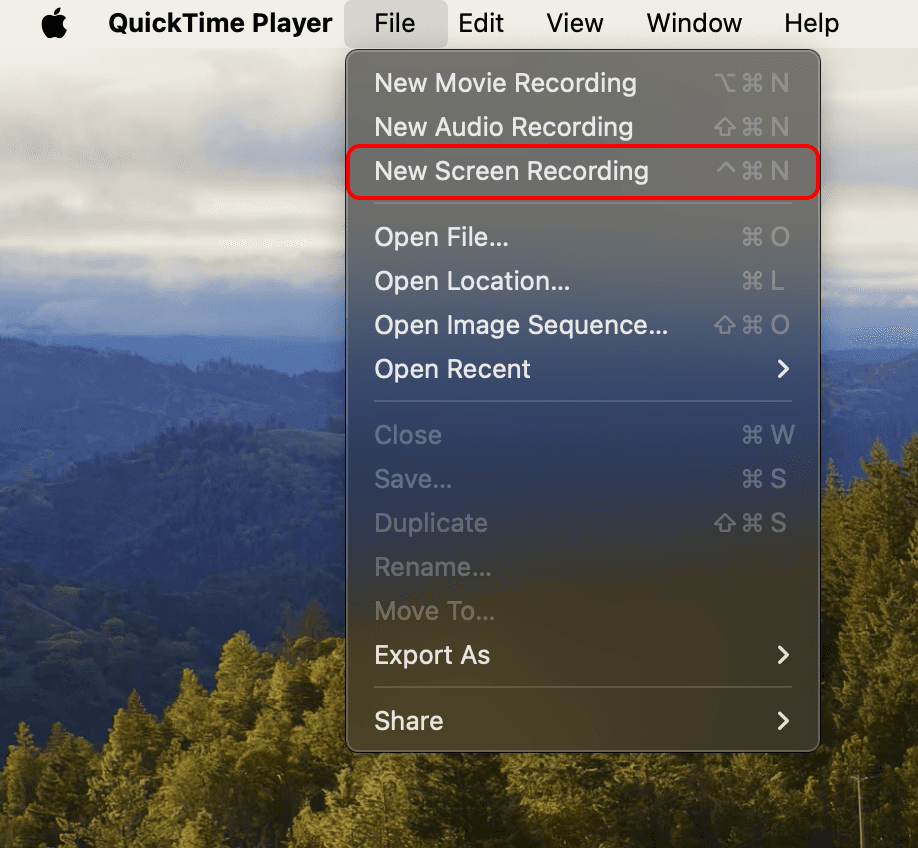
Open QuickTime Player, then click File > New Screen Recording, or press Command + Shift + 5.
Click Options, then under Microphone, select MacBook Pro Microphone.