
Auto zoom has become essential for Mac tutorials and demos, but with so many apps offering it, it’s hard to tell which one is actually good—and which one is worth the money.
This guide cuts through the noise with a practical look at 1001 Record and FocuSee so you can pick the workflow (and pricing model) that fits how you create.
What Auto Zoom Is (and why it matters)
Auto Zoom is a readability feature, not a flashy effect. It directs attention at the moment of action—clicks, form inputs, or menu picks—so labels are legible without manual keyframing later.
The best implementations fire only on meaningful actions, move smoothly, and preserve enough surrounding context that viewers never feel lost.
Highlights small UI elements right when you act (click/type).
Reduces post-editing—fewer manual zoom keyframes.
Improves comprehension on phones and small laptops.
Two styles in practice: set-and-forget automation vs auto + precise control.
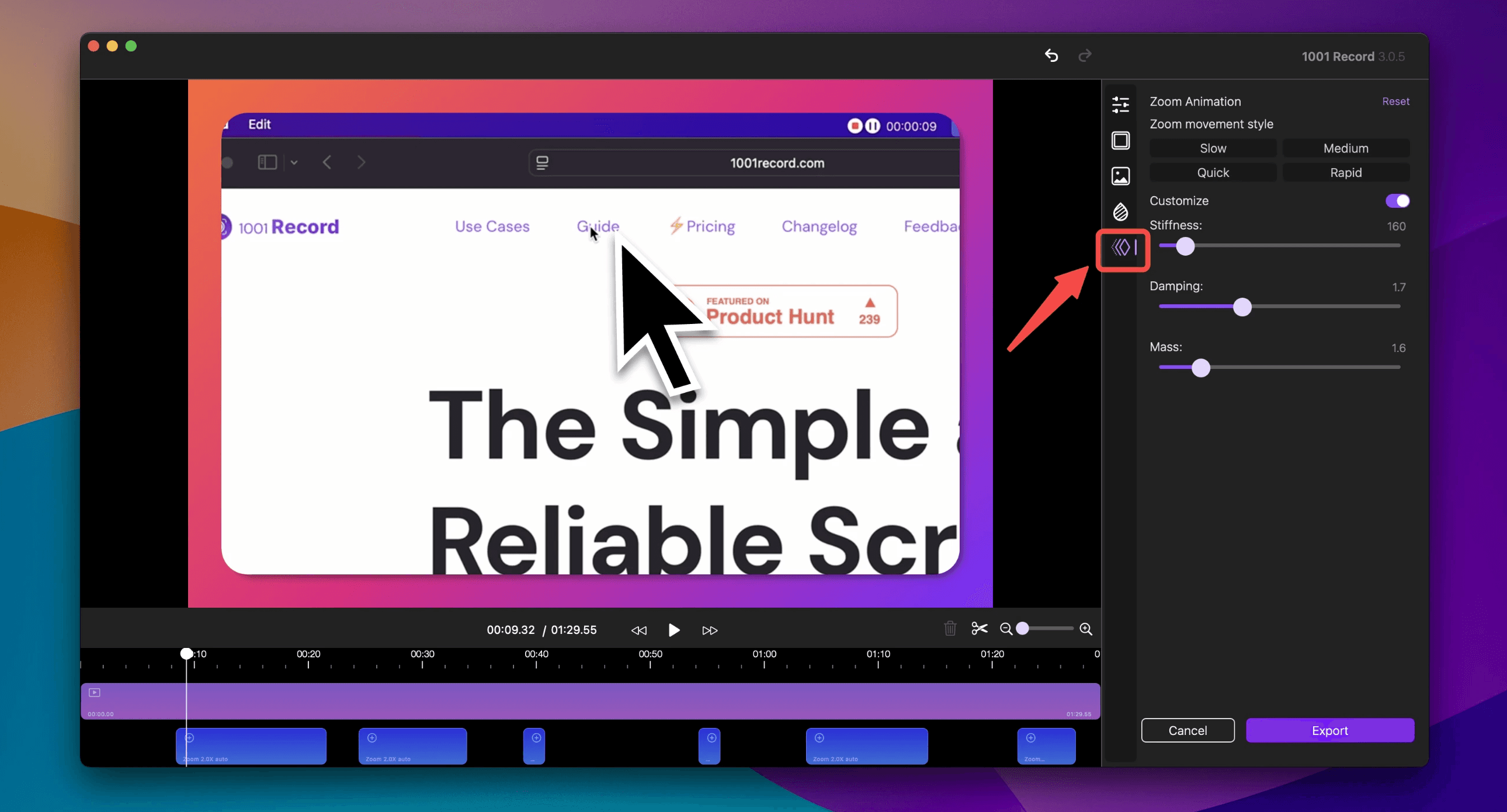
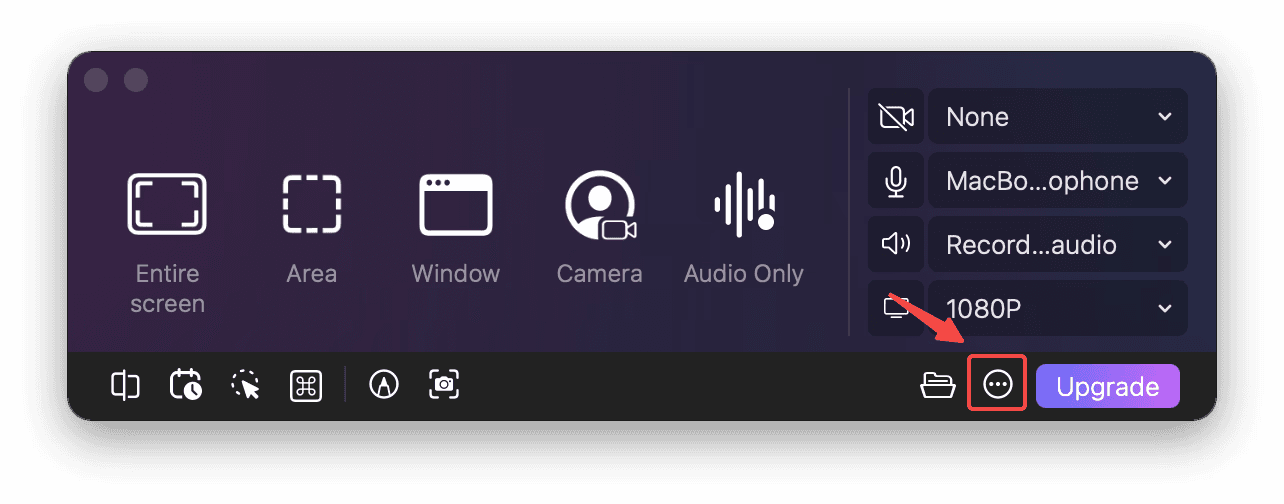
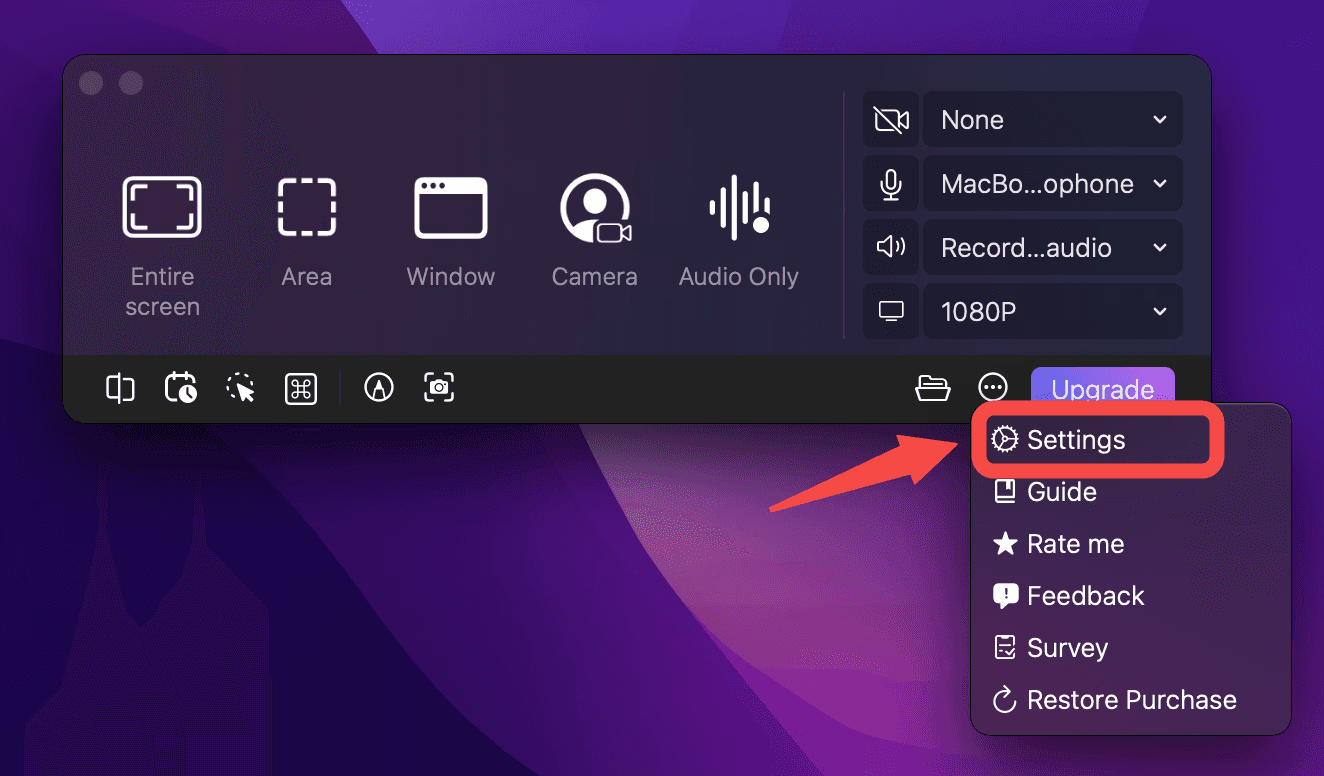
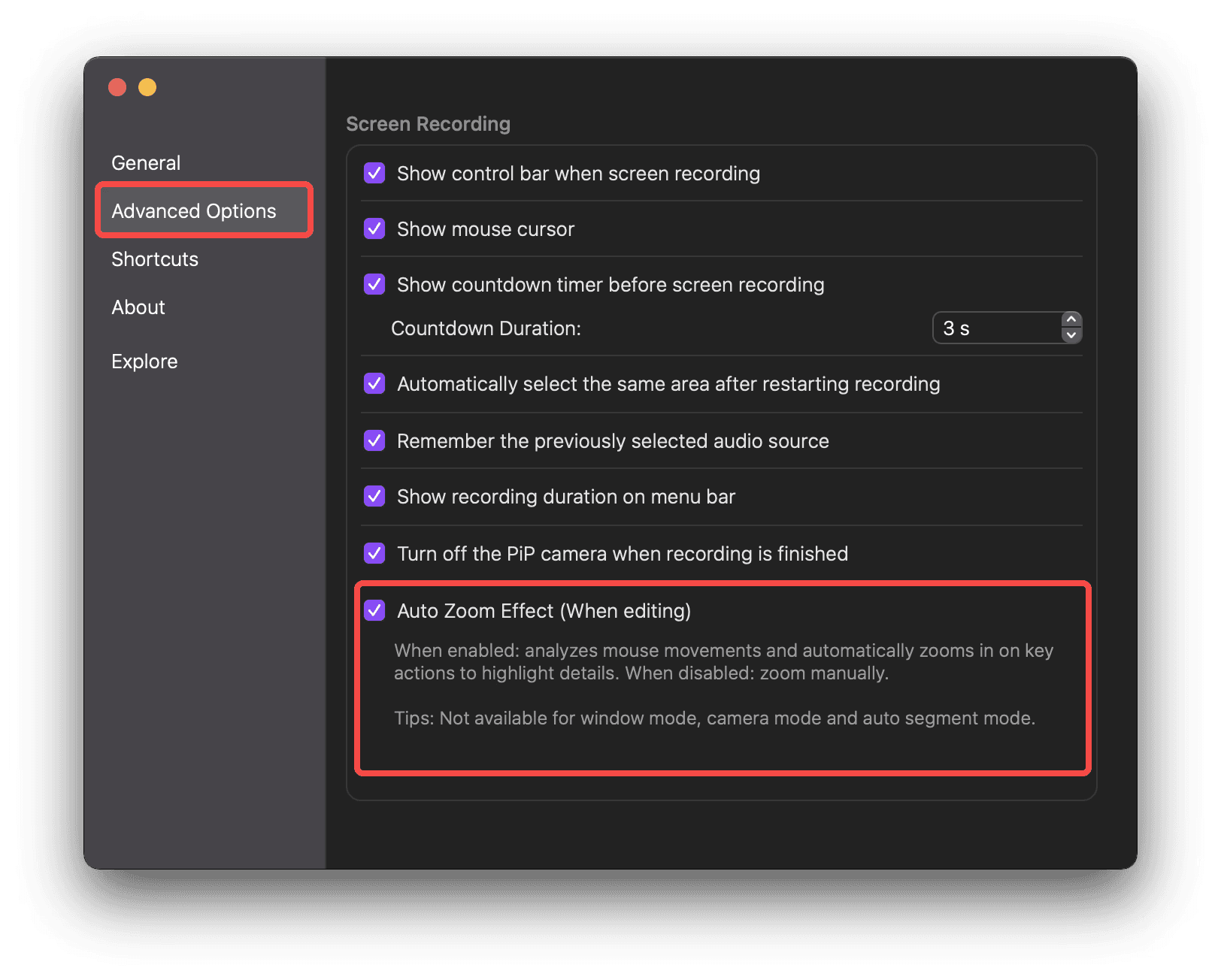
How to use Auto Zoom in 1001 Record
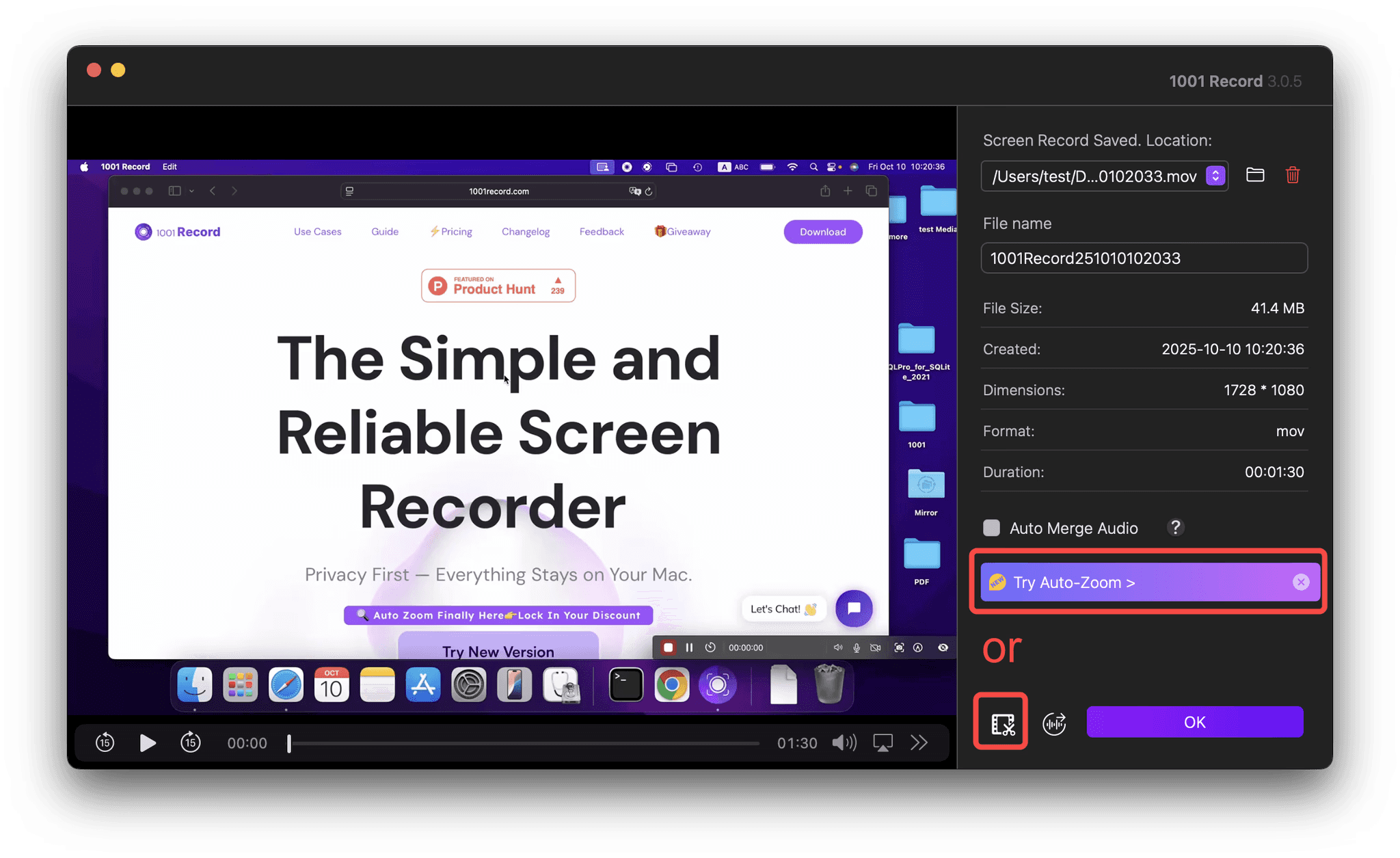
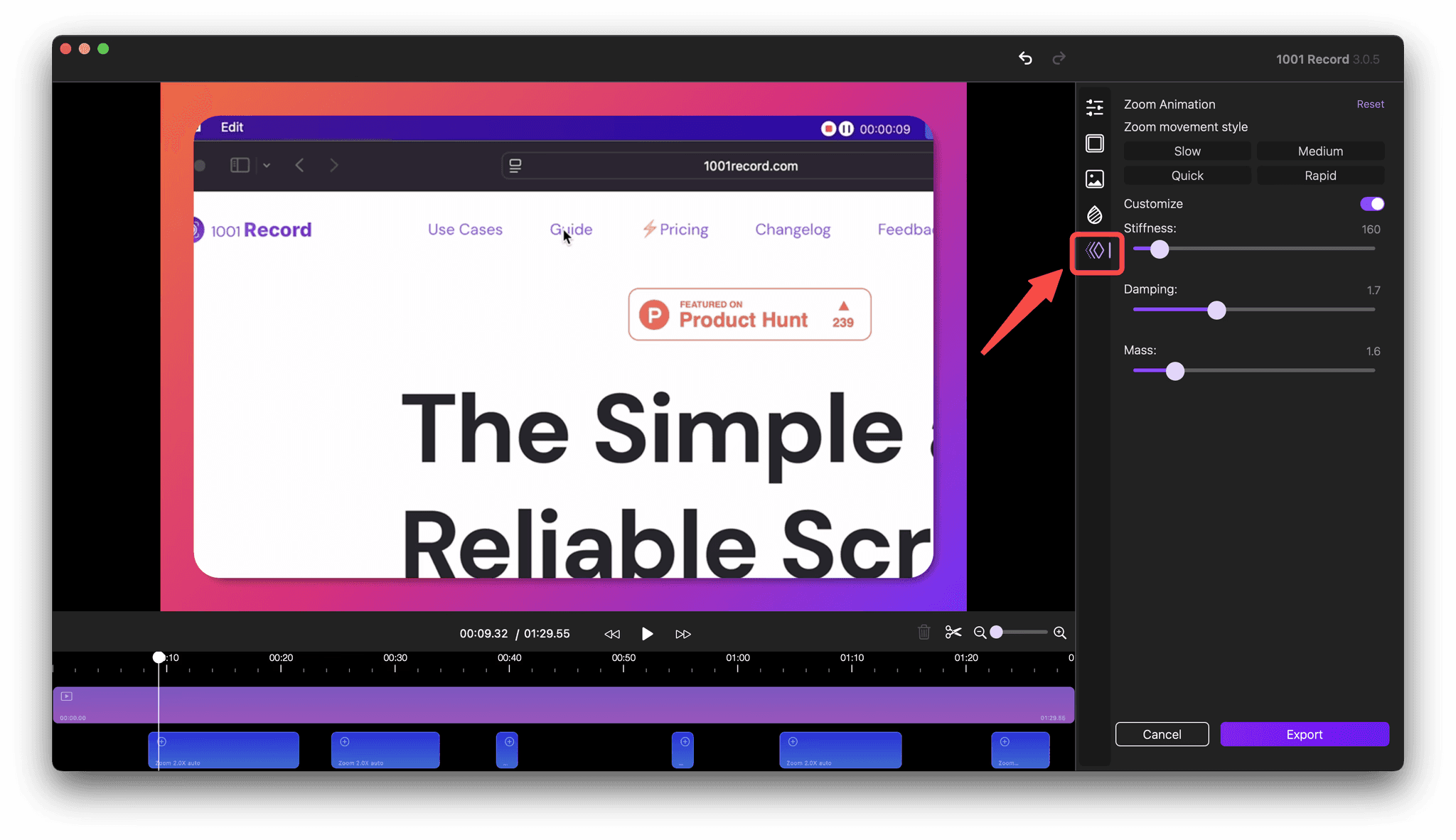
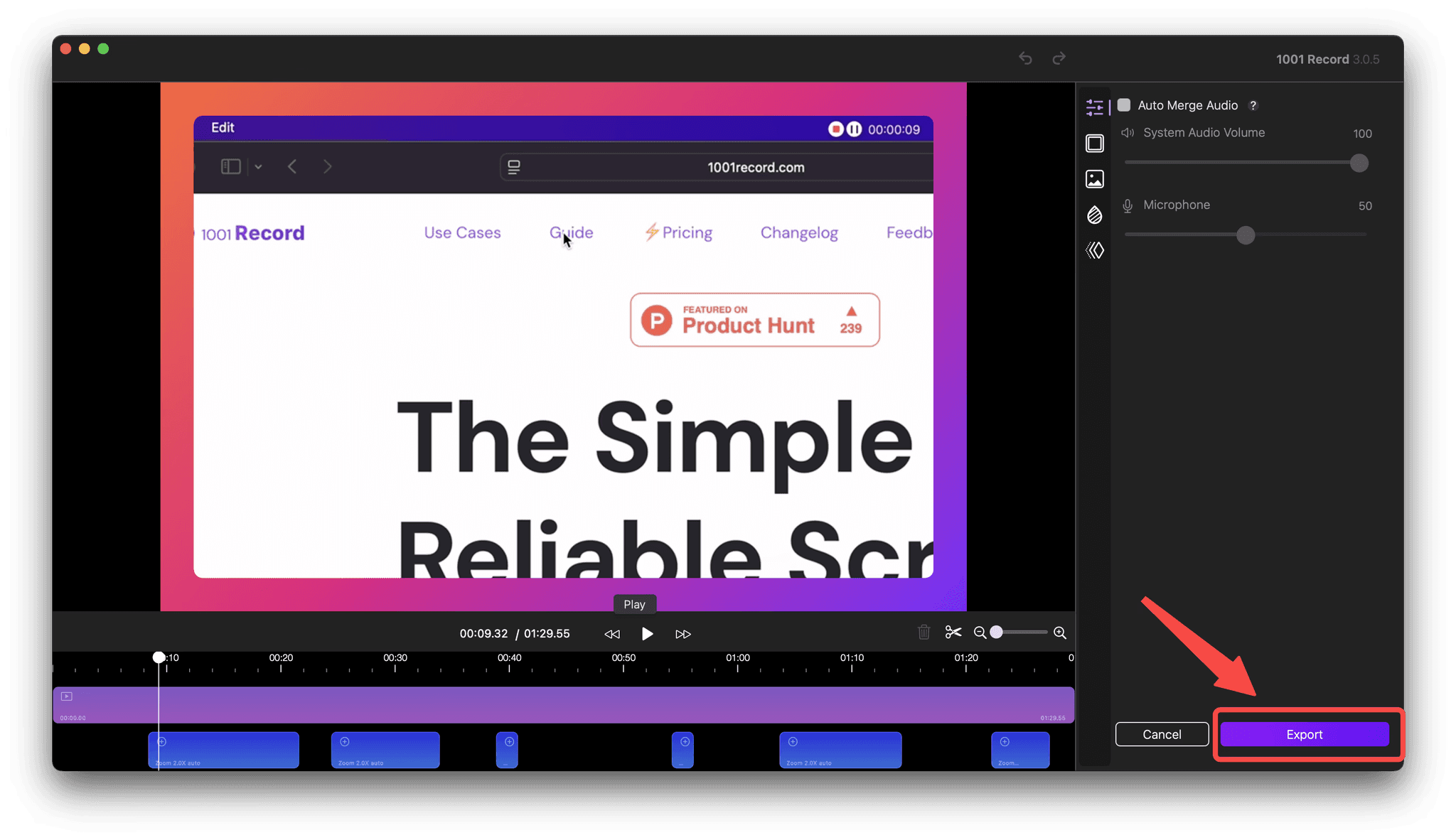
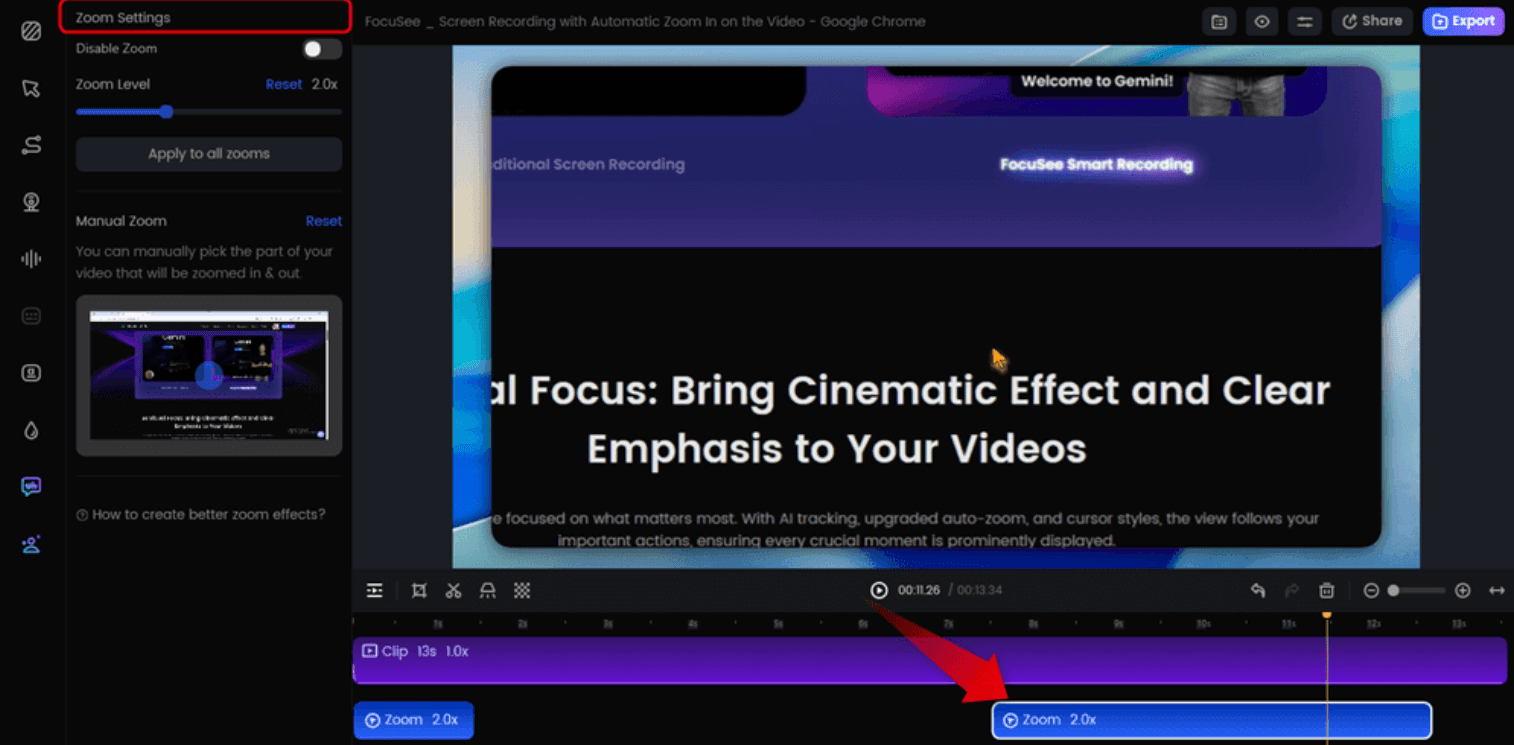
How to use Auto Zoom in FocuSee
FocuSee prioritizes speed and consistency. You choose what to capture—your screen, a window, or a region—then turn on Smart Focus/Auto Zoom and let the software handle everything automatically. The result is a clean, ready-to-share video that already has dynamic zooms, captions, and polished transitions. It’s ideal for creators who want quick results without spending time adjusting zoom points or animation curves.
What you get at a glance
Smart Focus & Auto Zoom that tracks your clicks and movements in real time.
AI-driven captions in 50+ languages, perfect for accessibility and international reach.
AI audio enhancement to remove background noise and filler words automatically.
Cursor & click effects with customizable styles and highlights.
Simple editing: trim, cut, speed control, filters, and watermarks—all in one interface.
Export in MP4 or GIF, up to 4K/60 fps, or share via instant links and passwords.
Auto Zoom workflow
Select capture area (screen/window/region) and your mic, system audio, and webcam inputs.
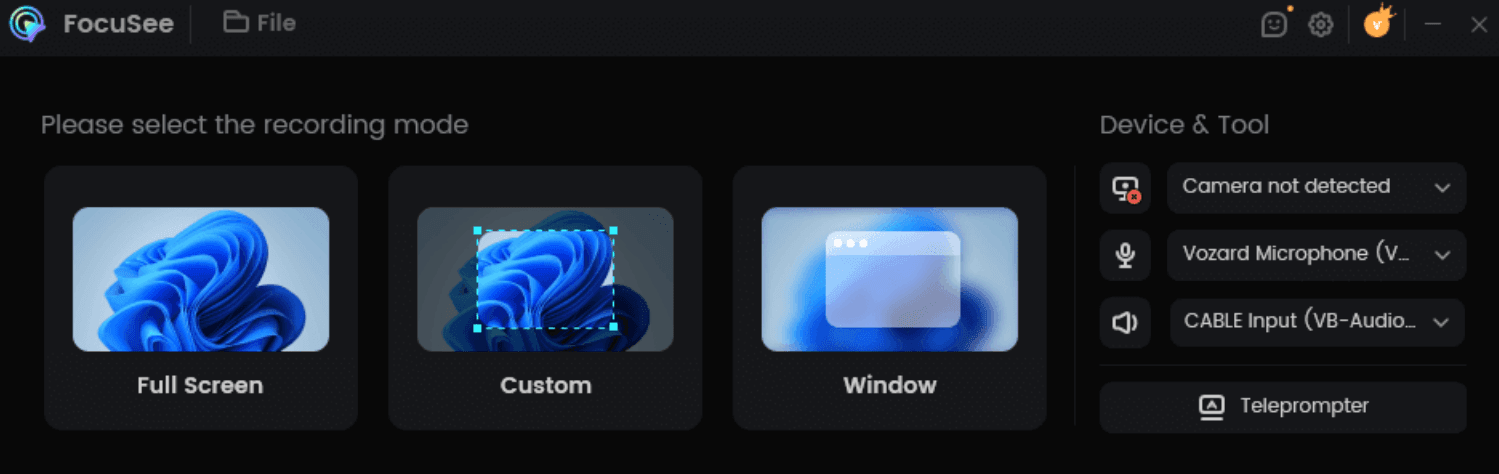
Enable Smart Focus / Auto Zoom, choose cursor and click animation styles.
Start recording—FocuSee automatically zooms and focuses on your actions.
Stop, trim unnecessary parts, and export or share instantly.
When it’s the better fit
You need fast turnaround for product updates, team training, or quick content posts.
You prefer AI automation that handles zoom, captions, and cleanup for you.
You don’t mind using a subscription model with online sharing options.
Side-by-Side: how they feel in daily use
Both apps make small UI actions visible; the difference is what happens after you stop recording. 1001 Record gives you a timeline to refine zooms for precision, while FocuSee’s automation lets you publish immediately. Your choice depends on whether you value fine control or speed.
Topic | 1001 Record | FocuSee |
|---|---|---|
Auto Zoom style | Auto + Manual (timeline control, 1×–4×) | Automatic (AI Smart Focus) |
Editing control | Add/move/resize/disable zooms; tweak animation feel | Trim/speed; focus fully automated |
Cursor / Keystrokes | Keystroke display, click highlight, annotation tools | Custom cursor styles, click ripples |
Audio | System + mic on separate tracks | Mic + system with AI noise reduction |
Captions | Manual or external | Auto captions built-in |
Output | Up to 4K/60 fps | Up to 4K/60 fps |
Privacy | Local-first, no login | Cloud sharing (optional) |
Best for | Precision & ownership | Automation & speed |
Pricing snapshot
Practical use cases
Auto Zoom helps anywhere clarity beats style. Whether you’re explaining a feature, training new staff, or presenting a product demo, zooming at the right moment keeps viewers engaged and focused.
Software tutorials: Highlight tabs, buttons, and toolbars; keep zoom at 1.75×–2.25× for readability.
SaaS onboarding: Emphasize call-to-action buttons; pair zoom with on-screen arrows or text notes.
Classroom training: Use gentle zooms and keystroke display for clear pacing and repeatable instructions.
Technical support: Capture and share quick fixes; Auto Zoom shows steps without extra narration.
Marketing demos: Use quick 2× zooms for “aha moments” that draw attention to your product features.
1001 Record: everything beyond Auto Zoom
1001 Record isn’t just a zoom tool—it’s a complete screen recording suite for Mac. It covers the entire workflow from capture to delivery, without cloud dependencies or hidden subscriptions.
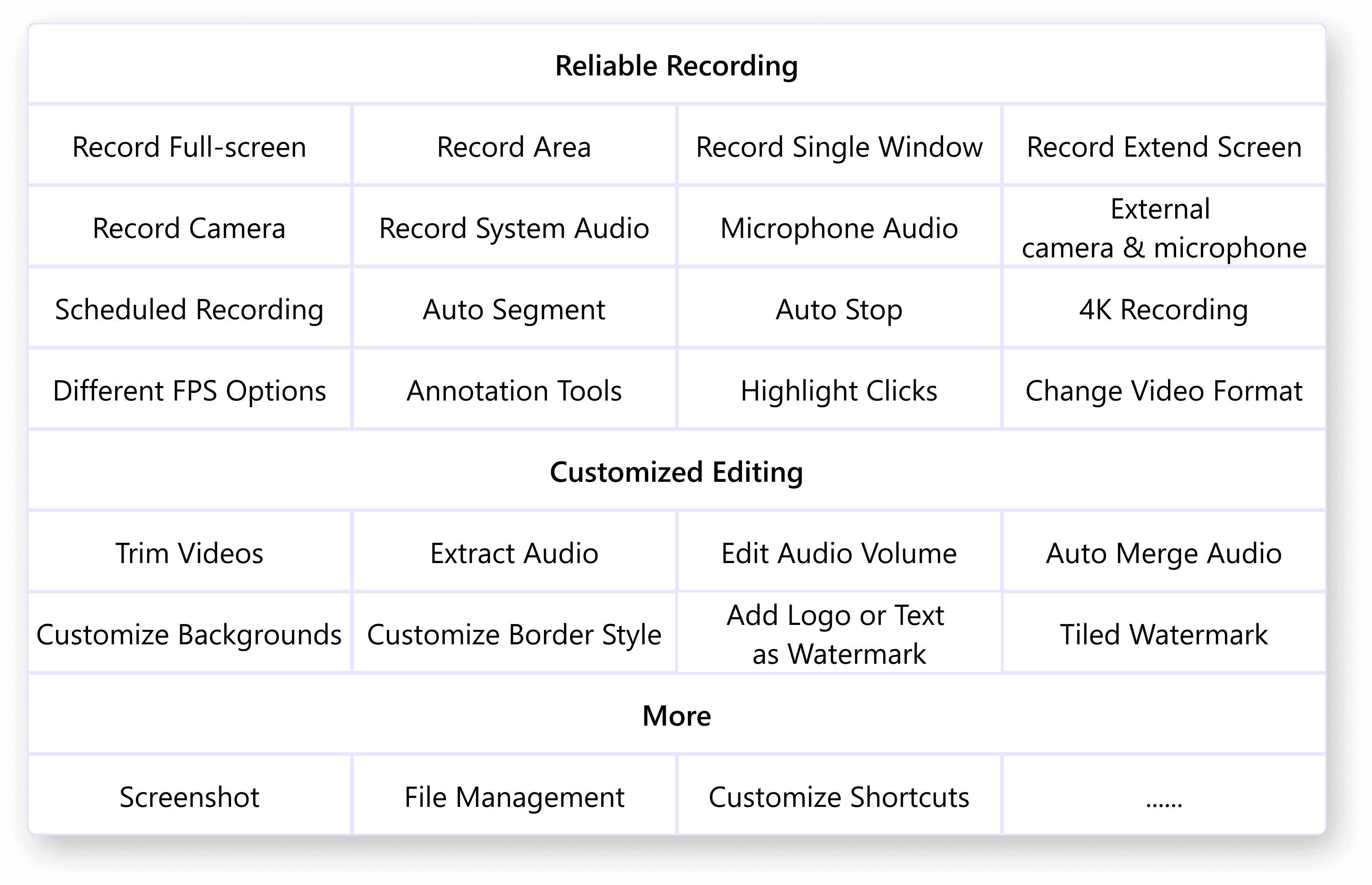
Reliable recording: Full screen / area / single window / extended screen; record camera, system audio, microphone, and external devices; Scheduled Recording, Auto Stop, Auto Segment, and 4K recording support.
Efficient editing: Trim, extract audio, adjust volume, auto-merge audio, and tweak animation smoothness for a professional touch.
Presentation tools: Annotate on screen, show click highlights, and display keystrokes for clear instructions.
Branding & export: Add logo/text watermark (or tiled watermark), change video format, take screenshots, and manage files—all within one interface.